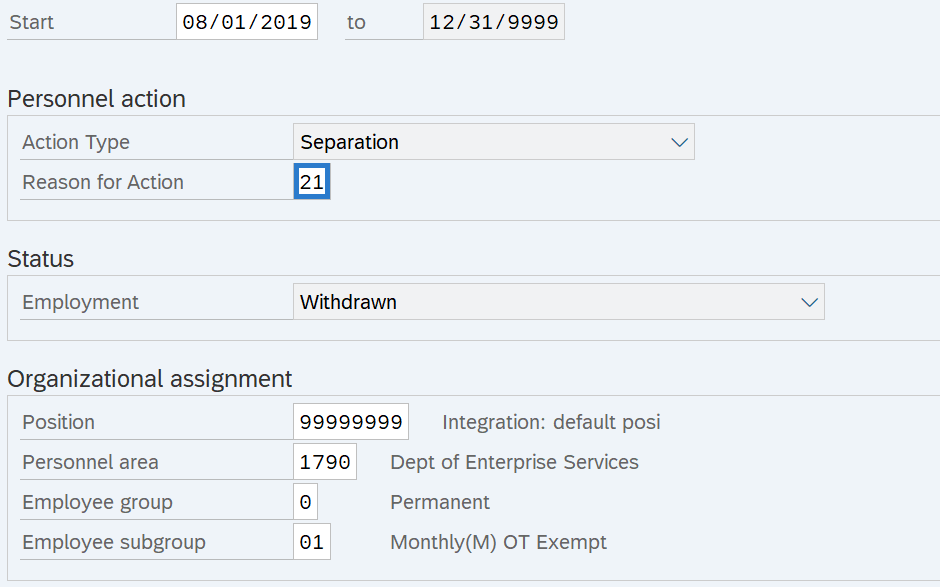
Separation Action (PA) - Create Separation Action
Use this procedure to separate an employee from state service.
The personnel administration processor should confirm with the time and attendance processor that all the items listed below are completed before starting the Separation Action (PA40).
- Deleted any future-dated time, compensation, and leave entries (including the effective date of the action and beyond) from CATS, the Employee Remuneration Info (2010) infotype, and the Absences (2001) infotype.
- Manually generated leave accruals if the employee has earned leave but is separating from the agency before the system generates their last accruals. Refer to the Quota Generate Accruals Manually user procedure.
- Executed ZT60 and ZCAT6 to ensure the employee has accurate leave accruals with correct end dates.
If the separation is a result of a layoff, the employee has the option of deferring the payment of their vacation leave buyout for 30 working days. If they elect to defer the payment, be sure to communicate the deferral to your payroll processor. The payroll processor will need to change the employee’s Payroll Status (0003) infotype record to continue running payroll for that employee until the date of the deferred buyout.
If the employee has separated from state service prior to the completion of six continuous months and has accrued vacation leave, the accrued amount will need to be removed so it is not accessible to the employee if they return to state service at a later date. Refer to the Quota-Removing Accrued Leave user procedure.
Upon separation from state service, the losing agency should encourage the employee to certify their employment for the PSLF program for their time with the agency. This is especially important if the employee is leaving public service, as they can only apply for PSLF while currently employed by a qualifying public service employer. Agencies must give separated employees the updated PSLF eligibility letter (RCW 41.04.045). If you have any questions about the PSLF process as an employer, please send your question(s) to PSLF@ofm.wa.gov.
This procedure may require hand-offs to the other roles (payroll processor, benefits processor, and time & attendance processor) depending on the structure of your agency and your role at your agency. The payroll processor should refer to the Separation Action (PY) - Create Separation Action or Separation Action (PY) - Create Separation Action for Deceased Employee procedures and the benefits processor should refer to the Separation Action (BN) - Create Separation Action procedure for their portions of the action.
Be sure to communicate with your payroll processor before entering a retroactive action.
-
Step 1
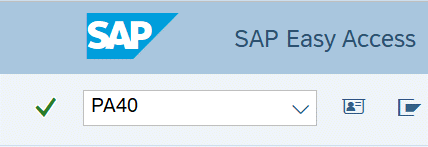
Enter transaction code PA40 in the command field and click the Enter button.
-
Step 2
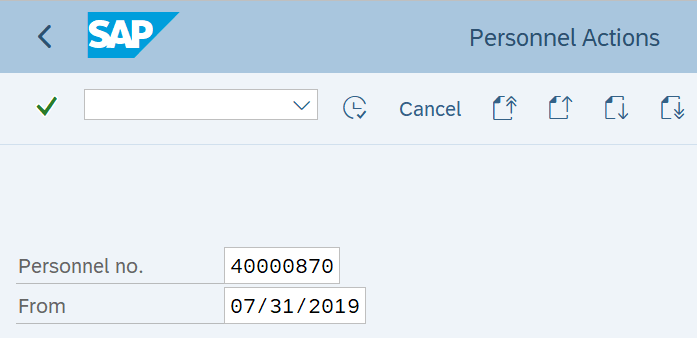
Complete the following fields:
- Personnel no.
- From
 TIPS:
TIPS:The From date should be the employee’s last day of employment. For deceased employees, the From date should be the date of death.
The Actions (0000) infotype will change the start date to the first day the employee is separated from state service.
-
Step 3
Click Enter to populate the employee information.
-
Step 4
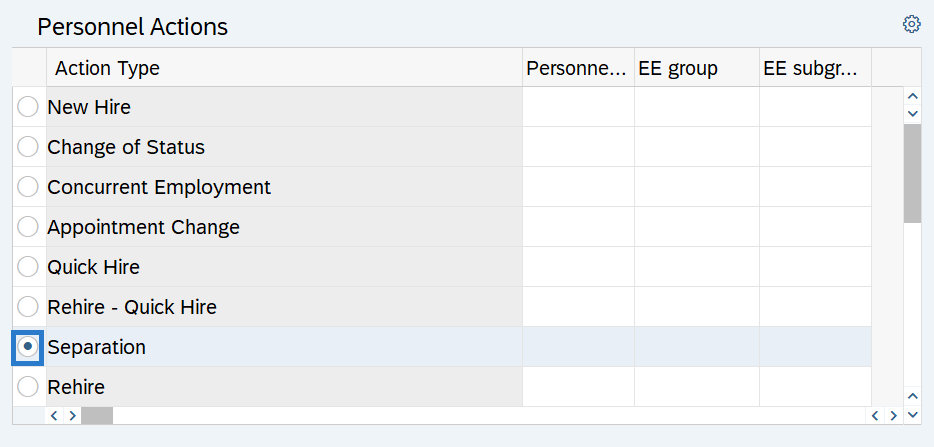
On the Personnel Actions tab, select the Separation radio button.
-
Step 5
Click the Execute button to begin the transaction.
-
Step 6
-
Step 7
Click the Enter button to validate the information.
-
Step 8
Click the Save button.
-
Step 9
If a Substitutions box appears, select the Enter button to review the substitutions.
 TIPS:
TIPS:The Substitutions box will only appear if the employee is a MyPortal Leave / My Modern Work Environment (MWE) Approver and has active planned or unplanned substitutions.
This box will not appear for employees assigned as a substitute upon separation, instead, the substitution relationship will need to be delimited outside of the Separation Action.
-
Step 10
Review all substitutions listed. Click on the name of the substitute to select the substitute relationship and take the appropriate action:
- DELIMIT: If the substitution relationship is dated prior to the separation, it is appropriate to Delimit the relationship one day prior to the action. Click the Delimit button. A Delimit Substitution box will appear, enter the Delimit date and click the Delimit button.
- DELETE: If the Substitution relationship is dated in the future of the Separation Action, it is appropriate to Delete the relationship. Clicking the Delete button will end your action on the current substitution relationship.
 TIPS:
TIPS:If all the substitute relationships are not ended (or deleted) upon separation and the employee returns to state employment, then the previously assigned substitute will still be able to view and approve leave and/or MWE requests creating a security risk.
Personnel Administration Processors should run the MyPortal Substitution Report each pay period and delimit substitution relationships where the MyPortal Leave / MWE Approver or assigned substitute separates from state service or moves to a different agency. Refer to the MyPortal Substitution Report procedure and Substitution Relationships Coding Guide for more information.
-
Step 11
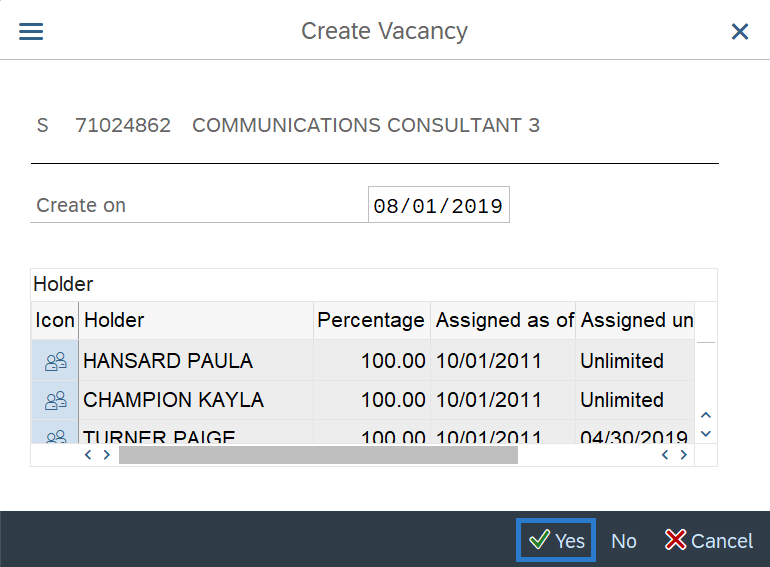
If a Create Vacancy box appears, select the appropriate option for your agency’s position.
 TIPS:
TIPS:This box will only appear if the position’s vacancy indicator is marked “Vacancy Filled”. Refer to the Vacancy Indicator Guide for tips on completing the “Create Vacancy” box.
If you click Yes, make sure the ‘Create on’ date is the date of the separation.
-
Step 12
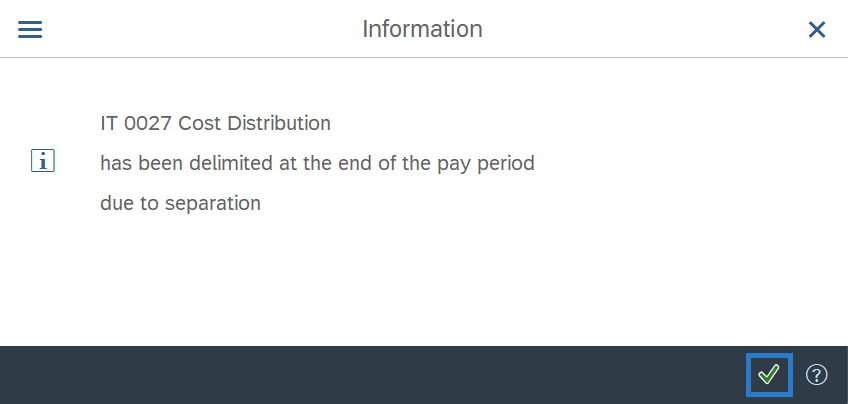
If an information window appears, click the Continue button.
TIPS:The IT 0027 Cost Distribution Information window will only appear if the employee has an active Cost Distribution (0027) infotype record.
-
Step 13
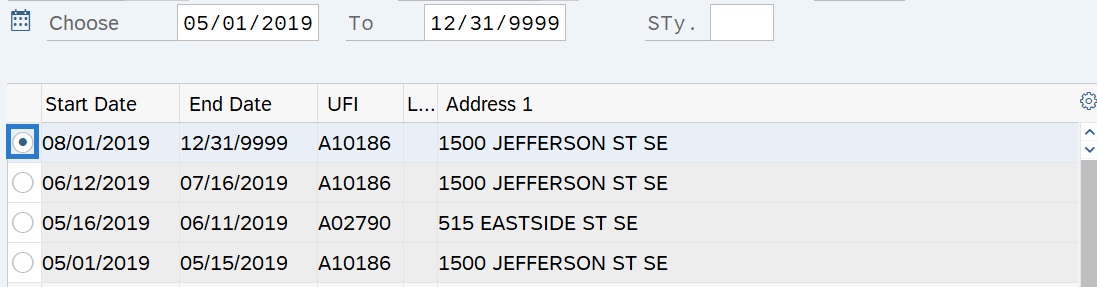
Select the radio button to the left of the Duty Station Address record to be delimited.
 TIPS:
TIPS:This infotype will only appear if the employee has an active Duty Station Address (9105) infotype record.
-
Step 14
Click the Delimit button.
-
Step 15
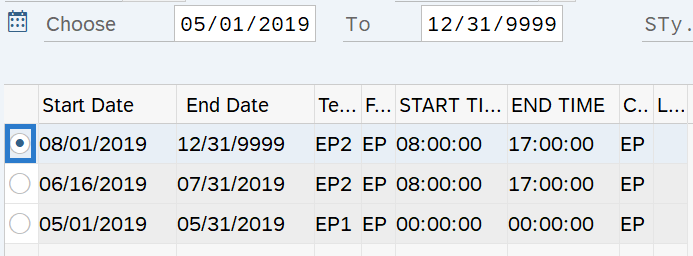
Select the radio button to the left of the Telework/Flex Work (Employee) record to be delimited.
 TIPS:
TIPS:This infotype will only appear if the employee has an active Telework/Flex Work (Employee) (9106) infotype record.
-
Step 16
Click the Delimit button.
-
Step 17
Select the radio button to the left of the E-mail record to be delimited.
 TIPS:
TIPS:Employees will have access to MyPortal for 30 days after separation. However, if they don’t know their password, the “forgot password” feature may not be useful if they no longer have access to their work email. Consider advising employees to reset their password to something they will remember before they separate.
An active WD Financials Phase 1a Conversion (WD1A) record will be delimited automatically during a Separation Action.
-
Step 18
Click the Delimit button.
-
Step 19
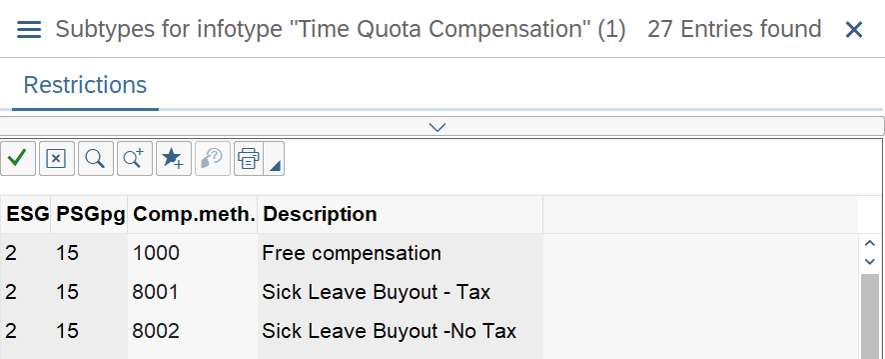
Close the Subtypes for infotype “Time Quota Compensation” window.
 Stop:
Stop:If the employee has an active Out of State Work Location record on the Addresses (0006) infotype, refer to the Addresses – Change Existing Record procedure to delimit the record effective the date of the separation.
For the personnel administration processor, this will mark the end of the Separation Action. After closing the time compensation window, transfer the separation packet to the payroll processor who will continue the action. The payroll processor should refer to the Separation Action (PY) - Create Separation Action or Separation Action (PY) - Create Separation Action for Deceased Employee to complete their portion of the action.